User guide › Members, teams & seats
Where this lives
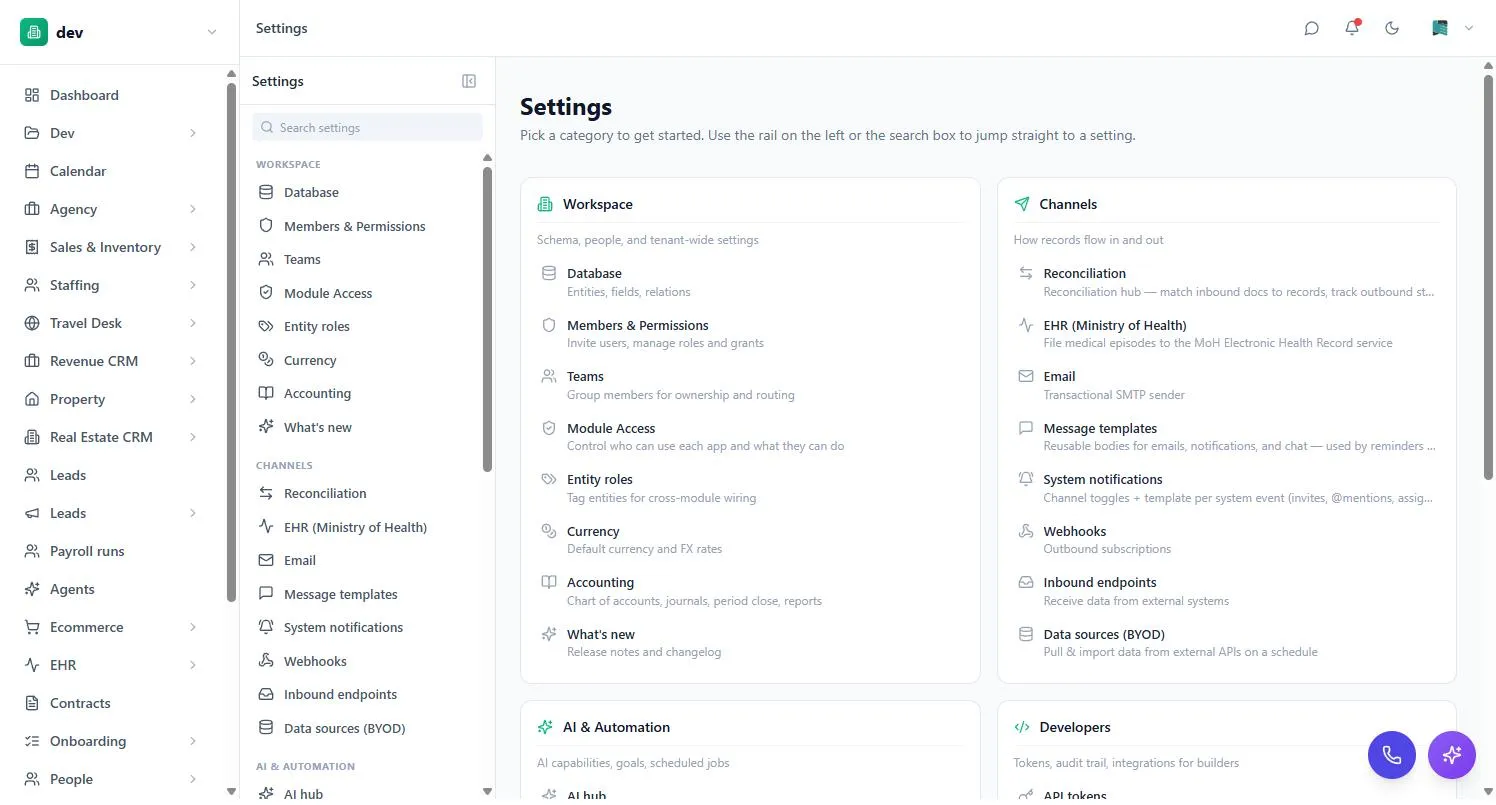
People are managed under Settings → Workspace → Members & Permissions. The Members tab is the roster; Roles and Access on the same page are covered in Permissions & access. Teams have their own page next door.
Adding someone
There are two routes, and the difference is who sets the password.
| Route | What happens | Use it when |
|---|---|---|
| Invite by email | They get a link, choose their own display name and password, and land inside the workspace already signed in. | Normal onboarding. |
| Add member | You create the account yourself. You can set a starting password or have one generated — it’s shown once, so copy it before closing. | No email address to hand, or you’re setting the workspace up in advance. |
Either way you can preset their roles and whether they’re an admin, so they arrive with the right access rather than waiting on you afterwards.
Pending invites
Invites that haven’t been accepted yet appear as a list below the members table, with what they’ll grant on acceptance. Each row can be resent, copied, accepted on the person’s behalf, or revoked.
- They expire after 7 days. Expired invites drop off the list on their own; the person is told to ask for a fresh one.
- Resending reuses the same link, so a link you already handed over by other means keeps working.
- An invite is single-use. Once accepted, the link is dead.
Emailing an invite needs a workspace email sender configured under Settings → Channels → Email. Without one the invite is still created — use Copy link and send it however you like. The invite doesn’t depend on the email going out.
What the roster shows
| Column | What it is |
|---|---|
| Name | Their display name. It’s also what they sign in with. |
| Used for password resets, invites and notifications. | |
| Title | A free-text label like “Sales Lead”. Cosmetic — it grants nothing. |
| Roles | The permission groupings they belong to. Editable inline. |
| Admin | Full, unrestricted access to the workspace. |
| Seat | Full or restricted — see below. |
| Last active | Live presence, then a relative time since they were last seen. |
| Joined | When the account was created. |
Title and Roles catch people out. A title is a label you’d put on a business card. A role is the thing permissions are actually granted to. Setting one doesn’t set the other.
Admins
Ticking Admin gives someone unrestricted access. An admin bypasses every record permission and every app restriction, which is why they don’t show up in the permission matrices at all.
Admins are also the only people who reach the workspace’s settings — the builder, members, module access, channels, API tokens, the audit log, apps and templates. Everyone else sees only their own personal settings, the AI hub, goals and the changelog.
Because admin overrides everything, one unnecessary admin quietly undoes a carefully built permission model. If someone needs broad access to one area, grant it through roles and module access instead — see Permissions & access.
Owner vs admin
The person who created the workspace is recorded as its owner. One owner can hold several workspaces; the ones you own are marked in the workspace switcher, and deleting a workspace is offered there only for those.
Day to day the distinction that matters is admin vs member, not owner vs admin. Plan & Billing is the one settings page reserved for owners, and every workspace admin counts as one — so in a normal workspace admins reach billing too. There’s no separate owner permission to hand out.
Teams
A team is a named list of people — a branch, a department, a shift. They live under Settings → Workspace → Teams.
Teams sit alongside roles rather than replacing them. A role says what someone can do; a team is just who a grant applies to. That makes teams the right tool when access follows a group that cuts across job titles — everyone at the Tbilisi branch, say, regardless of whether they’re in Sales or Support.
A team can be the subject of:
- a record permission grant on an entity,
- module access for an app,
- field-level visibility rules,
- sharing an individual record.
Deleting a team doesn’t delete the grants pointing at it — they simply become inactive. That’s recoverable, but it also means a stray delete can quietly remove access without leaving an obvious trail.
Seats
Every member who can sign in occupies a seat, and your plan decides how many you get. The Free plan is a single-user workspace; paid plans are priced per user with no cap. Current numbers are on the pricing page. On a downgrade — or when a trial ends — members beyond the new plan’s seat count are deactivated, not deleted; they’re switched back on when you upgrade.
When you’re at the cap, adding a member or accepting an invite is refused outright with a note telling you the plan’s limit and what you’re currently at. Removing someone frees their seat immediately.
If the subscription is past due or unpaid, adding users is blocked until billing is sorted out. Existing members are unaffected.
Settings → Billing & Marketplace → Plan & Billing has a Seats section showing what your current roster works out to per month. It’s an estimate for your own planning, not the invoice.
Restricted seats and gates
Not everyone needs the whole workspace. A warehouse picker or a part-time HR administrator may only ever touch one corner of it, and paying a full seat for that is hard to justify. That’s what a restricted seat is for.
Open the Seat column on a member’s row and you get two independent controls: whether the seat is restricted, and which gates they sit in. A gate is a named bundle of apps — the HR gate, for instance, covers the HR apps and nothing else.
What a restricted member can reach
- The apps of their gates, and only those.
- A personal baseline — signing in, their own profile, notifications, language and theme.
Everything else is closed: the builder, members and permissions, billing, API tokens, the audit log, workspace settings. Not hidden-but-reachable — refused. Someone who lands on a page outside their gates gets a plain “not part of your access” message rather than an error, and the member directory is trimmed down for them so they can’t read other people’s roles or activity.
Why a seat may need a specific gate
- A restricted seat must have at least one gate. Without one the person couldn’t reach any app at all, so it’s refused.
- Gates come from your plan. One that isn’t included shows as not on your plan and can’t be picked. Ask whoever supplies your BackOffice to add it.
- A gate can have its own seat limit. The picker shows how many of them are used; once it’s full, further assignments are refused until the plan changes.
- Admins can’t be restricted. An admin bypasses every access check, so a restricted admin is a contradiction — it’s refused in both directions.
A full member can also sit in a gate. They keep full access and are billed at the plan’s per-user rate, but they still occupy one of that gate’s seats — worth knowing when a gate looks fuller than the number of restricted people suggests.
Moving someone from a full seat to a restricted one revokes the grants they held personally outside their gate. Access reaching them through a role or a team isn’t deleted — it’s shared with other people — but it stops working for them. The confirmation tells you how many of each.
The two work at different levels. A seat decides which apps someone can be granted at all; permissions decide what they can do within them. A restricted seat doesn’t hand out access — you still grant it normally inside the gate.
For counting: a restricted seat doesn’t use up your plan’s user limit when its gate carries a limit of its own. It counts towards every other limit — records, storage, dashboards, AI — exactly like a full member.
Removing someone
The trash icon at the end of a member’s row deletes the account, after a confirmation. There’s no deactivated state — it’s a removal.
- Their access goes with them. Direct grants, role memberships, team memberships and any gate seat are all released.
- Their records stay. Anything they owned becomes unowned rather than being deleted.
- History keeps their name. Comments and the audit log still read correctly after the account is gone.
- You can’t delete your own account from here.
Unowned records are invisible to anyone whose access is “View own”. If the person leaving had a pipeline, a caseload or a queue, reassign it first — otherwise the work is still there but nobody on a View-own grant can see it.
Setting up a new joiner
- Decide the seat firstFull, or restricted to a gate? It’s easier to start narrow and widen than to downgrade later, since downgrading strips grants.
- Send the invitePreset their roles on the way in so they arrive usable rather than blank.
- Check both permission systemsRecord access and module access. Neither implies the other.
- Add them to a teamOnly if your grants route by team — otherwise skip it.
- Have them tell you what they can seeFaster than auditing the matrices, and it catches the one grant you forgot.