User guide › Entities & fields
This page needs admin rights. Everything here lives under Settings → Database.
The builder
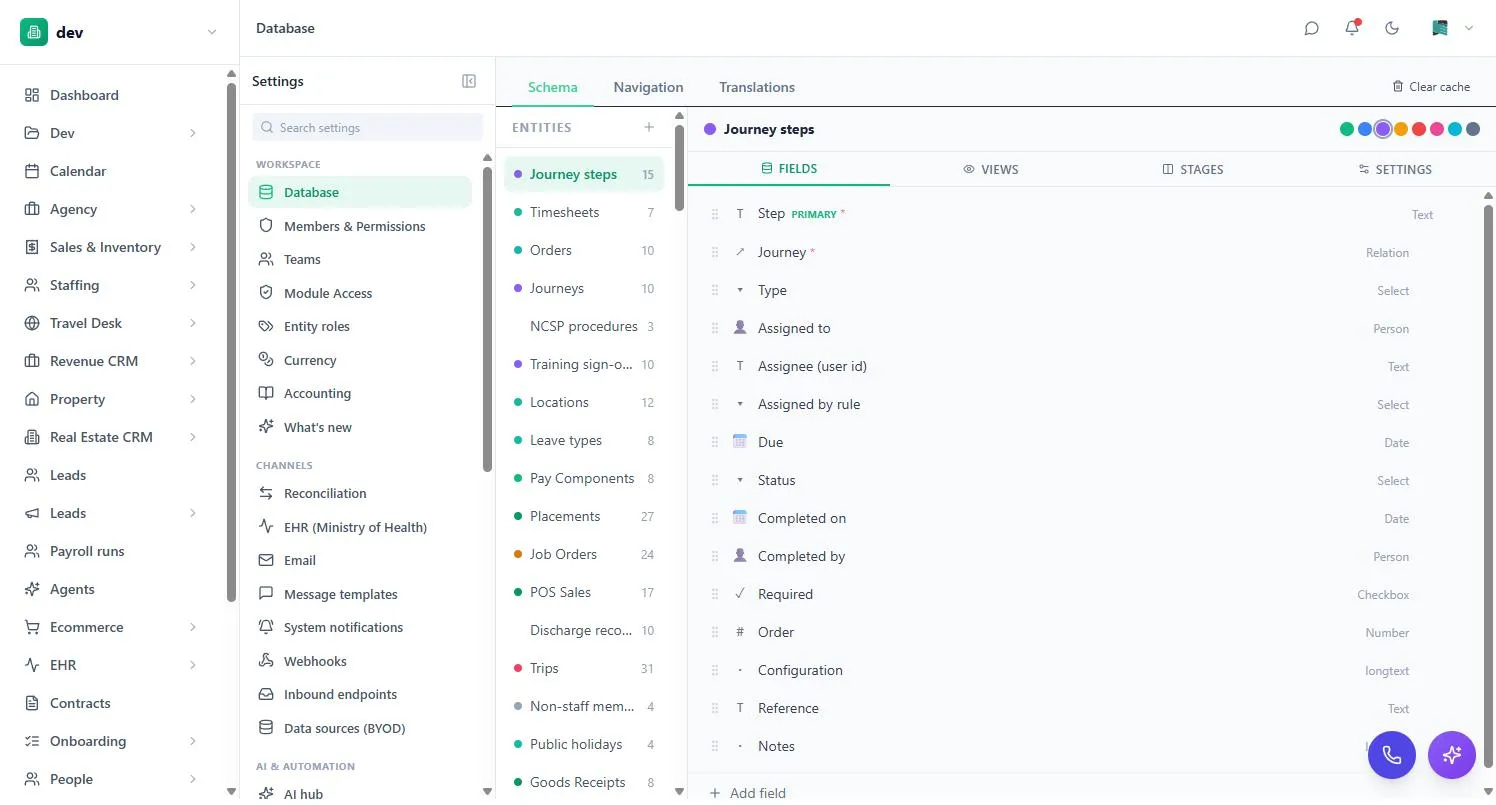
Three tabs across the top:
- Schema — the entities themselves. Where you’ll spend your time.
- Navigation — how entities are ordered, grouped, labelled and iconed in the sidebar.
- Translations — field and entity labels in each language your workspace uses.
Pick an entity and you get four tabs for it:
| Tab | What’s in it |
|---|---|
| Fields | Every field, its type and its configuration. Drag to reorder — this is also the order on the record form. |
| Views | The entity’s views, and each one’s filters, columns, board columns and card layout. |
| Stages | Workflow stages, and the rules about moving between them. |
| Settings | Entity-level options — naming, permissions defaults, behaviour. |
Creating an entity
- Press + above the entity listName it as a plural noun — Invoices, Job Orders. That name becomes the sidebar label.
- Add your fieldsStart with what you’d write on paper. Resist adding fields “in case” — an entity with eight useful fields is far more usable than one with forty mostly-empty ones.
- Set the primary fieldThe field that titles the record everywhere it’s referenced. Use something identifying — a name, a reference number. Never a status.
- Place it in the navigationOn the Navigation tab, drop it into a sensible group so the sidebar stays readable.
Field types
Roughly two dozen, in five families.
Text and numbers
| Type | Use it for |
|---|---|
| Text | Single-line text — names, references, short notes. |
| Rich text | Formatted content with headings, lists and inline images. Good for descriptions and write-ups. |
| Number | Quantities, counts, percentages. |
| Currency | Money. Formats and totals correctly, and respects your workspace currency settings. |
| Email / Phone / URL | Validated and clickable — mail, dial or open in one tap. |
Dates and choices
| Type | Use it for |
|---|---|
| Date | A day. Can drive calendar views. |
| Date & time | A moment — appointments, timestamps. |
| Select | One choice from a fixed list, each with its own colour. Board columns come from these. |
| Multi-select | Several choices from a list — tags, skills, categories. |
| Checkbox | A yes/no flag. |
A select can depend on another select, so the options offered narrow based on an earlier answer — pick a Country and the City list only shows that country’s cities.
Links between entities
| Type | Use it for |
|---|---|
| Relation | Point at one record in another entity — the Customer on an Invoice. |
| Multi-relation | Point at several, with no extra information per link — the Tags on an article. |
| Sub-records | Child rows edited inline on the parent — the line items on an order, each with its own quantity and price. |
| Person | A member of your workspace — an owner, an assignee. |
The choice between multi-relation and sub-records comes down to one question: does each link carry its own data? Tags don’t — use multi-relation. Order lines carry quantity and price — use sub-records.
Files and signatures
| Type | Use it for |
|---|---|
| File | Attachments — contracts, certificates, receipts. |
| Image | Photos, shown as thumbnails and used by gallery views. |
| Signature | A signature drawn straight onto the record for lightweight sign-offs. (Full e-signature envelopes are a separate app.) |
Calculated and scheduled
| Type | Use it for |
|---|---|
| Formula | A value worked out from other fields. Read-only, always current. See Formulas & automations. |
| Payment plan | Splits a total into instalments with an optional deposit, and won’t save unless the parts add up to the whole. |
| Recurrence | Makes a record repeat — either spawning copies on a schedule (recurring invoices, routine tasks) or updating itself (an annual price increase). |
Two more types add no data at all: Separator and Text block exist purely to break up a long form with headings and explanatory notes. On any form with more than a dozen fields, they earn their place.
Field options
Beyond the type, each field can be:
- Required — blocks saving until filled.
- Given a default — pre-filled on new records.
- Restricted — visible or editable only to certain roles, users or teams, optionally only under a condition. See Permissions & access.
- Shown conditionally — appearing only when another field has a particular value.
Changing things later
Adding a field is safe: existing records simply have it empty. Reordering and renaming are safe too — renaming changes the label, not the stored data.
Deleting a field removes its data from every record, and that isn’t undoable. If you might want the history, hide it instead.
Changing a field’s type has to reinterpret every existing value, and not every conversion is clean. Check a few records afterwards.
Entities you didn’t create
Entities that arrived with an installed app may be marked as managed, with a lock badge in the builder. Their structure belongs to the app so it can be upgraded safely — you can generally still use and configure them, but not restructure them. Uninstalling the app is what removes them.
Very large reference lists
An entity used only as a lookup target with thousands of rows — a medical code set, a product catalogue — can be marked so it isn’t loaded up-front with everything else. Pickers then search it on demand instead of trying to hold it all in memory, which keeps the app fast.