User guide › AI in BackOffice
The AI hub
Everything starts at Settings → AI & Automation → AI hub. It has a card per capability that takes you to the right screen, and — for admins — this month’s usage and a list of what ran recently above them.
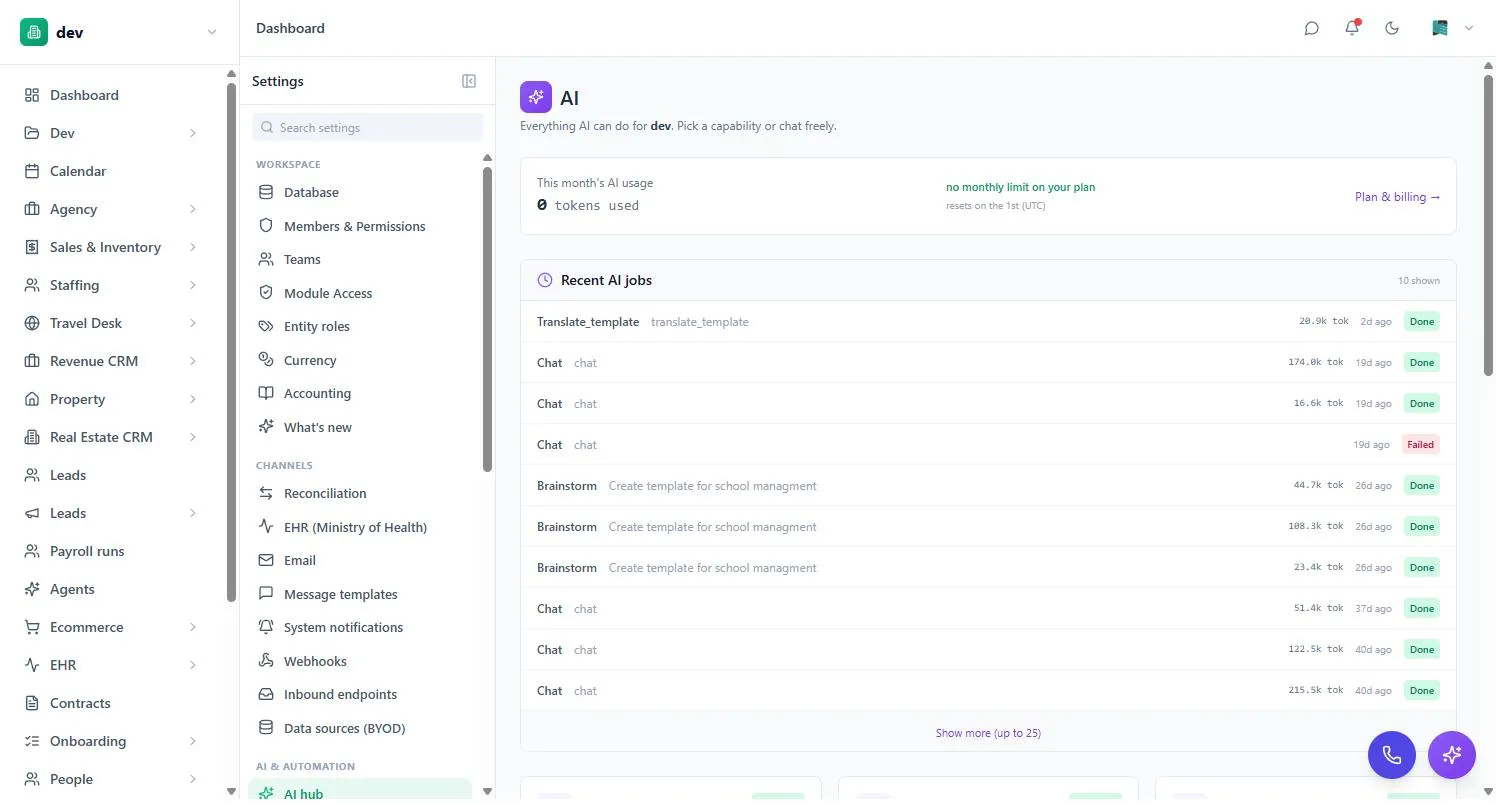
Each capability card carries a badge. Available means you can open it now. A plan name means the capability exists but isn’t in your plan — the card links to the upgrade page. Admin only means it’s there but you need admin rights. Coming soon means it hasn’t been built yet, which is deliberately worded differently so you’re never left guessing whether upgrading would help.
What AI can do
These are the capabilities, in the words the product uses for them. They’re separate on purpose: they can be turned on and off independently, and admins can see which one is spending the budget.
| Capability | What it does |
|---|---|
| Chat | Ask anything; the assistant calls tools to act on your workspace. |
| Populate from a file | Drop a spreadsheet, document, PDF or image and AI matches the data to entities you already have. |
| Build workspace | Describe the business; AI designs entities, fields, views and dashboards. |
| Brainstorm → workspace | Drop a transcript or notes; AI proposes a complete multi-entity workspace. |
| Refine installed template | Change an installed template in place, one instruction at a time, with a diff before anything is applied. |
| Translate a template | Translate a template’s entity, field and page labels into another language before installing it. |
| Analyze | Ask data questions in plain English; get an answer and a suggested chart. Read-only. |
| Build a dashboard | Describe the analytics you want to see; AI builds the metrics and dashboard pages over data you already have. |
Apps can add their own. Installing Agents, for example, adds an agent-run capability that’s metered and gated like the rest.
Chatting with BAIA
The assistant is called BAIA. It lives behind the floating violet button in the bottom-right corner of every screen — drag it somewhere else if it’s in your way. Unlike the other capabilities, chat isn’t a one-shot job: it works by calling tools against your workspace, reading the result, and deciding what to do next. That’s why it can answer “why isn’t this flow firing?” as well as build things.
The opening screen suggests starting points grouped as build new things, modify what you have and explore your data — for example “Create a Companies entity with Name, Phone, and Industry”, “Add a Status field to Tickets with Open / In Progress / Closed”, or “List the entities in this workspace”. You can attach files to a message.
When BAIA creates an entity or edits a field, that’s a real change to your workspace, not a preview. Everything it does is recorded as a session in AI history, and record-level changes can be undone from there in one click.
AI on a single record
Open any record and there’s a sparkle button in the header — Ask AI about this record. It opens an AI assistant panel beside the record with a list of actions. The record’s own data, its entity definition, its related records and its recent comments and activity are attached automatically, so you don’t have to paste anything in.
| Action | What you get |
|---|---|
| Summarize | A short written summary of the record and its history. |
| Draft reply | A drafted response based on the recent conversation on the record. |
| Suggest next action | What to do next, given the state the record is in. |
| Classify status | A suggested value for the record’s status field. |
| Fill missing fields | Suggested values for blank fields where there’s enough context to infer them. |
| Translate | The record’s text fields in another language. |
| Risk assessment | Risks visible in the data, written out. |
Actions that suggest values — Classify status, Fill missing fields — don’t write anything. They come back as a list of proposed field changes and you accept them one at a time. The panel also has a search box that turns a plain-English question into a filtered view of the entity.
Building a workspace from a description
Three screens do variations of the same thing, and which one you want depends on what you’re starting from. All three are admin-only.
- Build workspace — you can describe itWrite a brief, optionally attach spreadsheets, and the AI may ask a few clarifying questions before proposing a complete template: entities, relations, views, flows and seed records. You get a preview with a checkbox per entity, per automation and per dashboard, so you can install a subset. If it’s close but wrong, type advice like “split Companies and Contacts into two entities” and regenerate.
- Brainstorm → workspace — you have documentsTitled New template from docs. Drop PDFs, screenshots or scanned forms, optionally with a transcript or your notes pasted in, and the AI reads them and proposes a workspace. It shows you what it inferred so you can sanity-check the assumptions before installing.
- Templates — you already installed one and want it changedPick an installed template, describe the change, and you get a diff of exactly what would be added, updated or removed. You can scope a request to a single entity or just the dashboard, and the change is forced to stay inside that scope. Applying it updates the template in place — your records survive — and a revert point is saved in your browser.
All three run in the background. You can close the tab; the result waits for you in the AI hub.
Building a dashboard from a description
The three screens above design a business — entities, fields, workflows. Build a dashboard does the opposite: it leaves your data alone and designs the numbers on top of it. Ask BAIA in chat for “a sales performance dashboard”, “revenue versus budget with gross margin”, or “how are my warehouses doing”, and it reads your existing entities and proposes the metrics and dashboard pages that answer the question.
Because it’s built on the same brainstorm loop, it behaves the same way. If the request has a real fork in it — which entity holds the numbers, whether to compare against a plan, which breakdown, which period — it asks a few multiple-choice questions first, with its own recommendation already selected so you confirm or change rather than answer from scratch. Otherwise it proposes straight away and lists the choices it made so you can check them.
- It reuses what you have. If a number you asked for is already a saved metric, it points at that one rather than defining a duplicate.
- Plan versus actual is built in. Ask to compare against a target or budget and it sets up the target figures and shows actual against plan on the cards and charts.
- Editing is a request, not a rebuild. “Add gross margin to my sales dashboard” or “make that a bar chart” changes the page in place and leaves every other widget exactly as it was.
- Every version is revertible. Applying a dashboard is a tracked install, so a proposal that turned out wrong rolls back cleanly from the same place templates do.
Like the workspace builders, this writes real schema, so an admin applies it — a member can ask BAIA to design one and hand it over to install.
Populating entities from a file
Populate from a file is the opposite of the three above: it doesn’t design anything, it fills in entities you already have. Drop spreadsheets (CSV, Excel, JSON), Word documents, PDFs, images or text files, optionally say what the data is (“these are leads from last week’s webinar — import as Contacts”), and the AI proposes which entity each chunk belongs to.
Nothing is written until you say so. The proposal lists each target entity with a confidence rating, the reason it chose that entity, the column-to-field mappings and a preview of the records — you tick the ones you want and click Apply. If the data needs fields your entity doesn’t have yet, it proposes those separately for you to approve first. Once applied, the whole ingest can be undone from AI history.
Confidence ratings are the model’s own opinion, not a guarantee. Expand a proposal and look at the actual rows before applying — especially dates, currency columns and anything that should link to an existing record. Audio and video files aren’t supported; paste a transcript instead.
Asking questions of your data
Analyze takes a question in plain English and answers it from your workspace data. It is strictly read-only — enforced on the server, not just hidden in the UI — so no phrasing of a question can change anything. Running one currently needs admin rights.
An answer comes back as a written narrative, often with a chart, plus two things worth using: How I got this, which is the reasoning, and a list of the actual queries it ran. If a number looks wrong, that’s where you find out why.
The question history on this page lives in the browser tab. Navigating around the app keeps it; a hard refresh clears it. Copy anything you need to keep, or rebuild it as a report if it’s a question you’ll ask again.
Agents
Everything above waits for you to press a button. Agents — a separate app you install from the app directory — is the part that doesn’t. You write a mission in plain English (“check sales against stock and propose a purchase within our budget”), and the agent reasons over your data with tools and writes you a report.
- Triggers: on demand, on a schedule, when a record is created or changed, or as a step inside an automation flow.
- Autonomy: read-only, or allowed to propose record changes. An agent never writes to your data directly — proposals sit on the run waiting for a person to approve or reject them.
- Grants: you list which entities it may read and which it may propose writes to. Those grants are enforced when it reads, and checked again when someone approves.
- Guardrails: a cap on reasoning steps, on how many records it may scan, and hard spend caps per run and per month. There’s also an optional web-access switch.
- Delivery: an agent can send its findings to a team chat room, email a workspace member, or raise a notification — recipients are always people in your workspace.
Before you activate one, use Test (dry run): it strips the write and delivery tools and just reads and reports, so you can see what the mission actually produces. Running agents can be cancelled mid-flight, failed ones can be retried, and a runs dashboard shows runs, errors, tokens and cost per agent for the month. See AI Agents for a fuller tour.
History and undo
AI history & undo — on the hub and on its own page — lists every AI session that touched the workspace, grouped by session, with what each one did and how many of those actions are reversible. Undo rolls back the record-level changes in a session.
Record-level changes reverse cleanly. Schema-level actions — creating an entity, adding a field — can’t be undone automatically, and the confirmation tells you how many of those a session contains before you commit. Undo those by hand in the builder.
Admins can switch the list to All users; everyone else sees their own sessions.
Who can use AI Admin
There are two independent gates, and it’s worth knowing which one is stopping you.
| Gate | Controls |
|---|---|
| Plan | Which capabilities the whole workspace has at all. Set by your plan, with a master switch that can turn AI off entirely. |
| Per-person grant | Which members may use AI. Admins always can. Everyone else is off until an admin turns them on — the grant is per person, not per role. |
The grant screen is Settings → AI & Automation → AI access. It lists every member with a toggle, an optional monthly token cap each, and what they’ve used this month. Admins show as Always on and can’t be capped individually — to limit an admin’s AI usage, make them a regular member first.
Personal caps compose with the workspace cap: whichever runs out first stops the user. The page shows how much of the workspace budget you’ve promised to individuals, so you can see when you’ve over-allocated.
Being granted AI isn’t the same as being able to reach every screen. Chat and the AI panel on a record are what a granted member uses directly; the job-based capabilities — building a workspace, populating from a file, refining a template, running an analysis — are launched by an admin. As the hub puts it: building entities and populating from files require admin permissions, but you can still chat freely, and ask a workspace owner to invoke the others on your behalf.
Usage and limits
AI usage is metered in tokens — roughly, the amount of text going in and coming back — and counted per workspace, not per person. The month runs on the calendar and resets on the 1st (UTC), which won’t necessarily line up with your billing date.
- Your profile page shows your own usage for the month and your personal cap, if you have one. That’s the one everybody can see.
- The AI hub shows the workspace total with a progress bar, or “no monthly limit on your plan” if your plan sets no hard cap. Admins only.
- The Recent AI jobs list on the hub shows the token cost of each individual run, which is the quickest way to find what’s expensive. Admins only.
- Plan and billing breaks the month down by capability — chat, ingest, templates, brainstorm, analyze — which is where you find out that one surface is quietly eating the budget.
When a cap is reached the AI call is refused with a message saying which limit bit — yours or the workspace’s. Nothing else in BackOffice is affected.
How your data is handled
Using AI means some of your workspace data is sent to a language model to be processed. That’s unavoidable — it’s how the feature works. What we can tell you is exactly what BackOffice does around that boundary.
- Nothing runs on its own. Every AI call is either something a person invoked, or an agent an admin created and activated. There is no background process reading your workspace.
- Secrets are stripped before the model sees them. Data returned to the model by its tools passes through a redaction step that removes values whose field names look like tokens, secrets, passwords, credentials, API keys, private keys or hashes.
- Stored traces are scrubbed too. The records BackOffice keeps of AI turns are scanned for credential-shaped text and scrubbed before they’re written.
- Your input is treated as data, not instructions. Text you type or upload is wrapped in explicit markers in the prompt, so content inside a document can’t pose as a command to the model.
- Agents can’t send data outside your workspace. Their delivery options only address members of your own workspace — there is no way to configure an agent to email an external address.
- Reads and writes stay inside permission. Agent entity grants are enforced server-side when reading and re-checked at approval time; the model only ever proposes.
Which model provider is used is configured by whoever operates your BackOffice, and a plan can restrict which providers a workspace is allowed to use. For the terms that govern data processing, see the privacy policy; for everything else about protecting your account, see Security & your account.