User guide › Working with records
Creating a record
Open an entity from the sidebar and use + New record at the bottom of the table, or Add card at the foot of a board column. Creating from a board column sets that column’s status automatically.
Required fields are marked with an asterisk and block saving until filled. If a field you expected isn’t there, it may be hidden by a conditional rule until some other field is set — for example, “Reason for discount” appearing only once a discount is entered.
Editing inline
Most fields can be edited straight from the table without opening anything. Click a cell and type; click a select field and pick from its options.
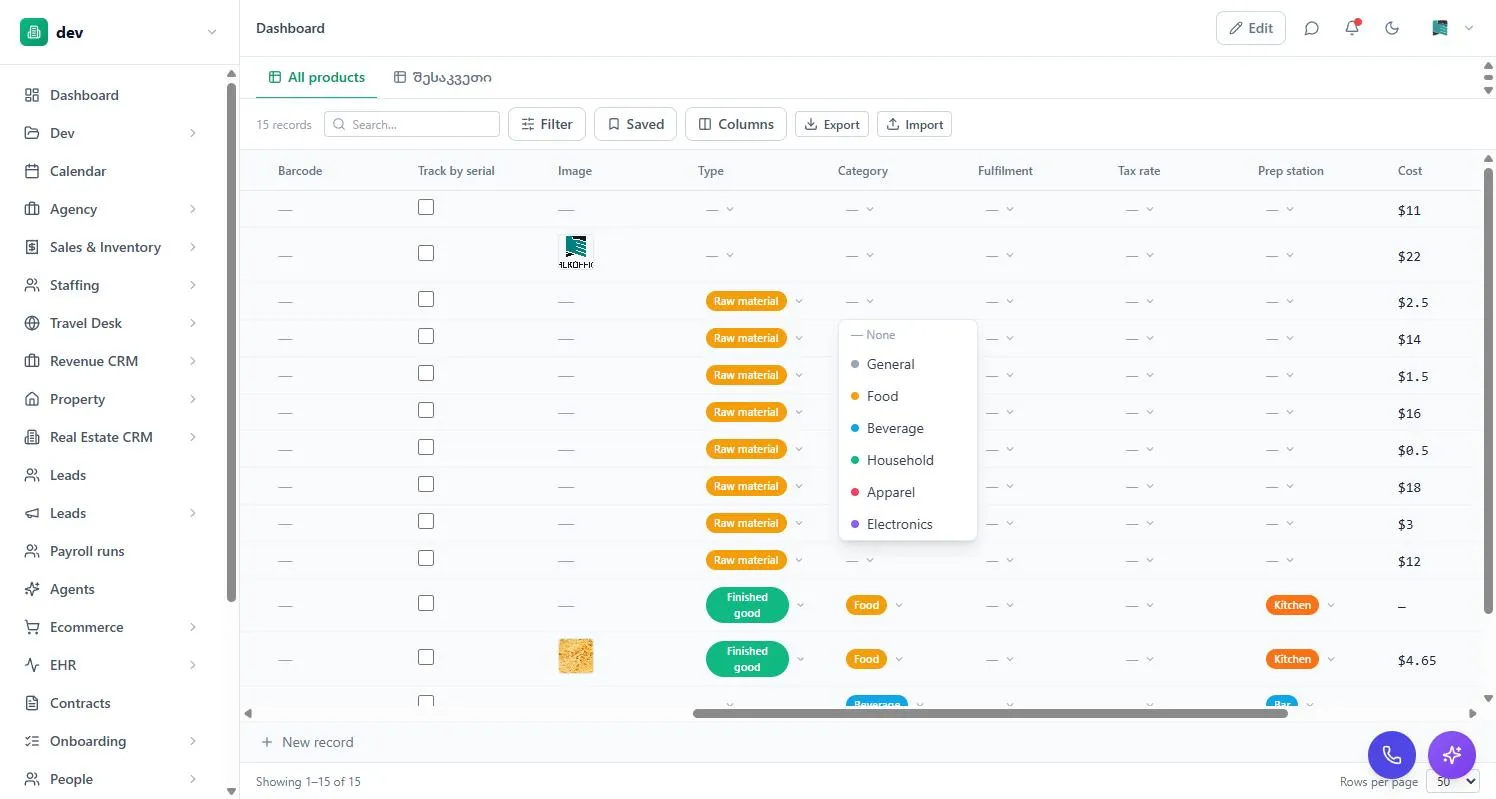
Changes save as you make them — there’s no separate save button and no draft state. If a save can’t complete you’ll be told; it isn’t silently dropped.
Formula fields calculate themselves and can’t be typed into. Other fields may be locked because of your permissions, or because a rule locks them once a record reaches a certain state — an invoice amount freezing once it’s paid, for instance.
The record profile
Opening a record gives you the full profile: every field laid out properly, plus the things that don’t fit in a table cell — attachments, related records, comments and history.
Depending on how the entity is set up, a profile can show:
- Related records — the invoices belonging to this customer, the lines on this order — listed and often editable in place.
- Files and images uploaded against the record.
- A signature captured directly on the record for sign-offs.
- Comments from your team.
- History of what changed, when and by whom.
Comments and mentions
Comments keep the discussion attached to the thing being discussed instead of in a separate chat. Type @ and a name to mention a colleague — they get a notification with a link back to the record.
History and versions
Records keep a version history. You can see what a record looked like before a change, who made it and when — useful for “who moved this to Approved?” and for undoing a bad bulk edit.
Separately, admins have a workspace-wide audit trail under Settings → Audit covering logins and permission changes as well as record edits. See Security & your account.
Working on several at once
Tick the checkboxes at the left of a table to select rows, then apply an action to all of them — updating a field across the selection, exporting just those rows, or deleting them.
A bulk update writes to every selected record at once. Check the selection count before confirming, and remember that filtering the view first is usually safer than selecting by hand.
Duplicates
BackOffice can flag records that look like duplicates of one another — two customers with the same email, say — so your list doesn’t quietly fill with near-copies. Where it’s enabled you’ll be warned as you create a record, and can merge or keep both.
Deleting
Deleting a record needs the Delete permission on that entity, which is granted separately from Edit — plenty of people can change records but not remove them, by design.
Think about relations before deleting: if other records point at this one, removing it leaves them without a link. Where a record has meaning in history — a paid invoice, a completed sale — mark it cancelled or archived with a status field rather than deleting it.
AI on a record
Where the assistant is enabled, you can act on a single record with it — summarising a long thread, drafting a reply, or filling fields from an attached document. It only ever sees the record you’re on. See AI in BackOffice.