User guide › Views & filters
Switching views
An entity’s views appear as tabs across the top of the page. Switching tabs changes the presentation, never the data — the records are the same underneath, and an edit made in one view shows up in all of them.
The view types
| View | Best for |
|---|---|
| Table | The workhorse. Scanning, sorting, bulk editing and anything spreadsheet-shaped. |
| Board | Work that moves through stages. Columns come from a select field; dragging a card sets it. |
| Calendar | Anything with a date — bookings, deliveries, deadlines. |
| Timeline | Work with a start and an end, and dependencies between items. |
| Gallery | Records where the image is the point — products, properties, people. |
| Chart | Aggregate shape rather than individual rows. |
| Form | Structured entry, including public forms that people outside the workspace can fill in. |
| Mind map | Records with a parent-child structure. |
| Availability | Bookable time — who or what is free when. |
| Record 360 | One record with everything related to it gathered on a single page. |
The table
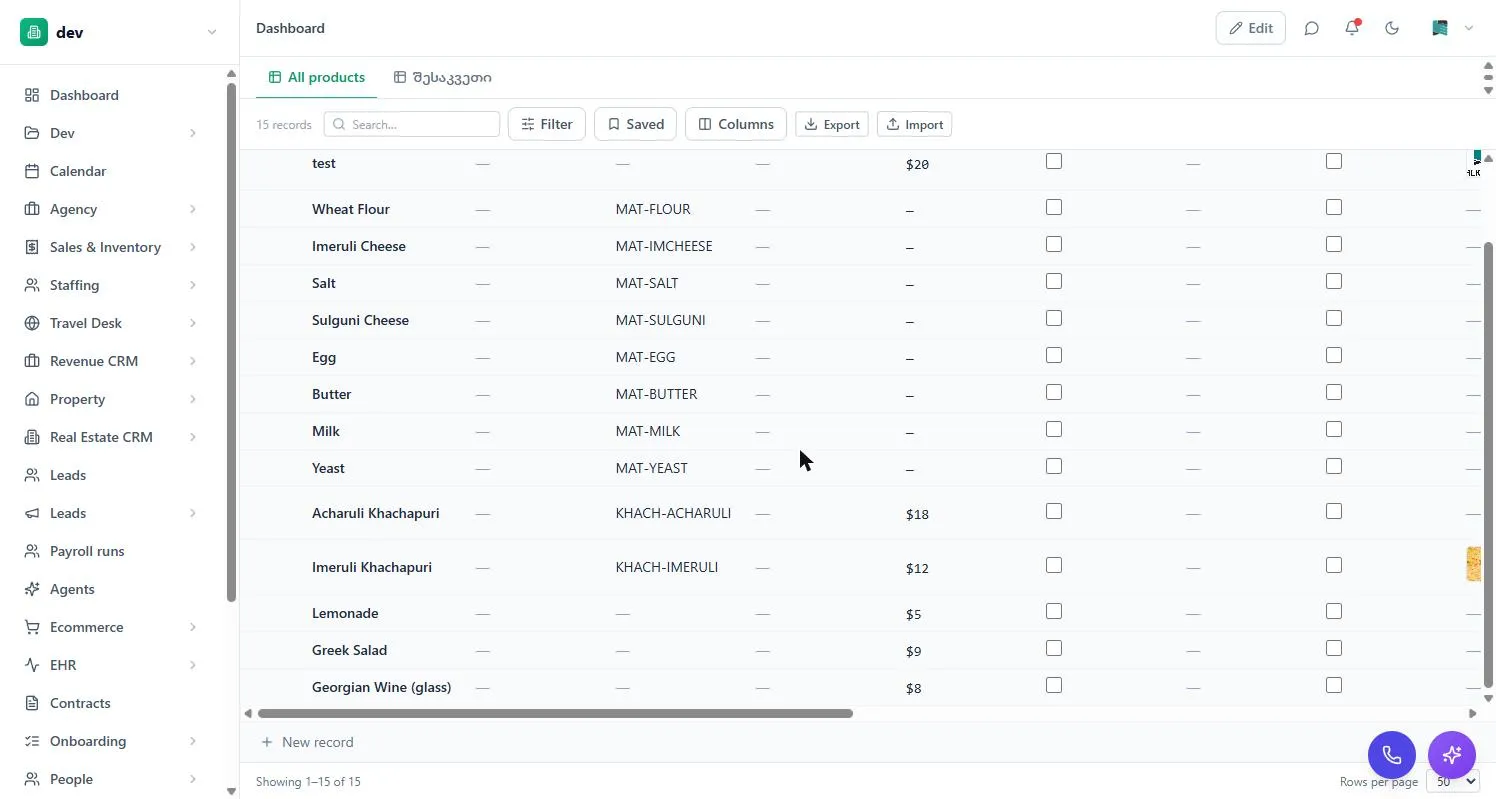
- Sort by clicking a column header.
- Reorder and resize columns by dragging them.
- Select rows with the checkboxes for bulk actions.
- Page size is set bottom-right; the record count sits top-left.
Searching and filtering
The search box filters the current entity as you type — good for “where’s that one record”. For anything more precise, use Filter to build conditions on specific fields: status is Open, amount is over 1,000, owner is me, created in the last 30 days.
Conditions combine, so you can express “open jobs over £1,000 that aren’t mine”. The record count updates to show how many matched, which is the quickest way to check a filter is doing what you meant.
Filtering a view only changes what you see. It doesn’t hide records from colleagues and it doesn’t delete anything — clear the filter and everything returns.
Choosing columns
Columns controls which fields are visible and in what order. Entities often have far more fields than are useful at once; hiding the rest makes the table readable without affecting the data.
Saved views
Once you’ve built a filter and column set you’ll want again, save it under Saved. It comes back in one click, and the button shows a count when a saved view is active so you always know you’re looking at a subset rather than everything.
This is the single biggest time-saver in daily use. “My open jobs”, “unpaid over 30 days”, “this week’s deliveries” — build each once.
Import and export
Export downloads the current view as a file — respecting your filters and visible columns, so you can export exactly the subset you’re looking at rather than the whole entity.
Import brings a spreadsheet in, mapping its columns onto fields. Large files are processed in the background so you can carry on working while they load.
Check date formats, currency columns and any relation fields — relations have to match existing records to link up. Import a small batch first and confirm it landed before committing the full file.
Boards in detail
A board groups records into columns by a select field — typically Status or Stage. Dragging a card to another column writes that value to the record, which is why moving a card can trigger automations: notifying someone, starting an approval, stamping a date.
Column headers show a count. Columns can be collapsed to get long ones out of the way, and Collapse all / Expand all handle the whole board at once. Cards show a configurable handful of fields — enough to decide what to do without opening anything.
Views are created and configured per entity under Settings → Database, on the entity’s Views tab. That’s also where board columns, card layouts and stage rules are set. See Entities & fields.